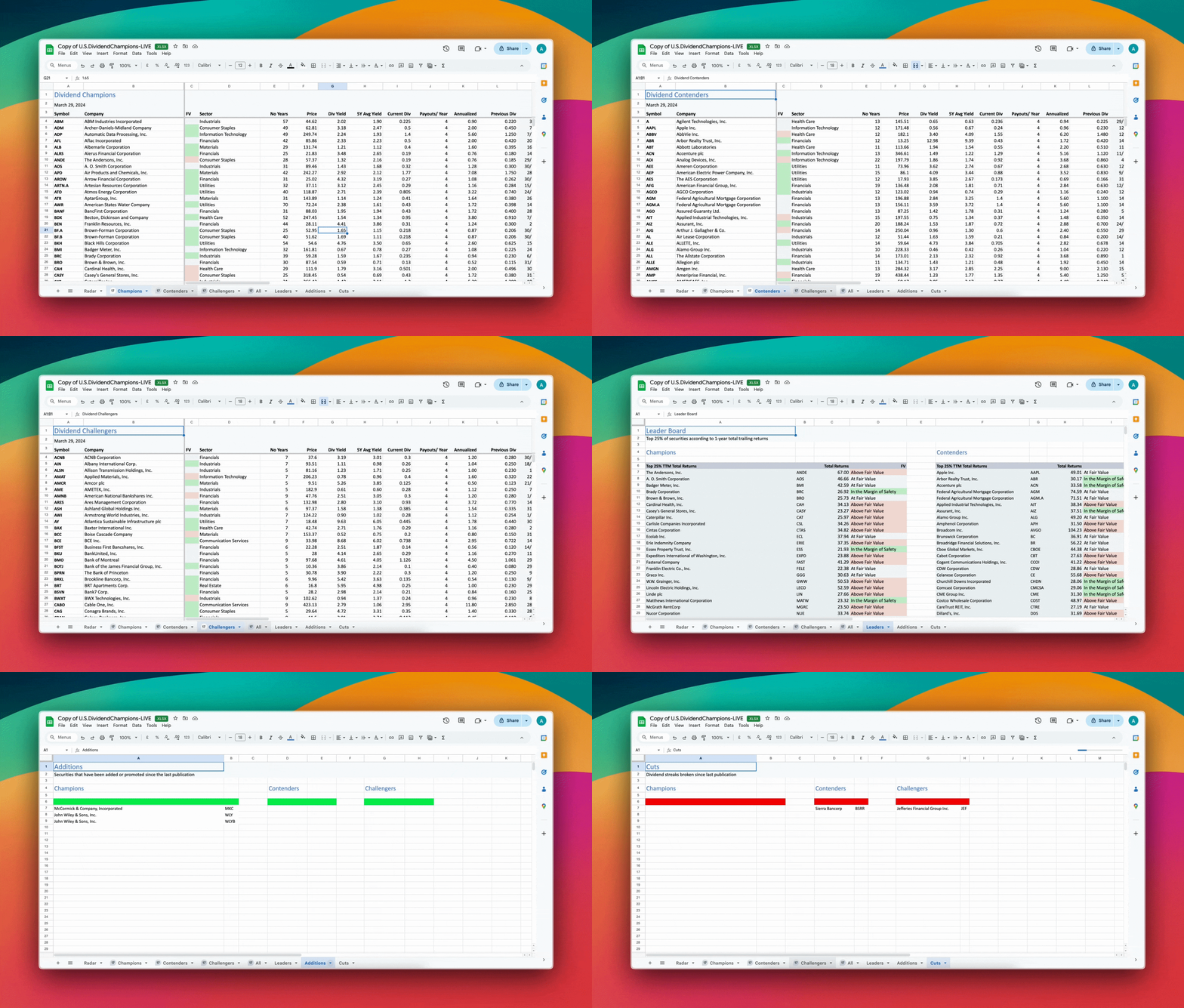
Get the full and updated Dividend Champions list delivered straight to your inbox.
If you’re looking for a way to generate income from stocks, the Dividend Champions are a great place to start. These 139 stocks have been increasing the amount of their dividend payouts for at least 25 straight years.
We’ve put together a complete, up-to-date list of all the current Dividend Champions. You can download it below, along with a host of useful metrics for analyzing their performance.
Start with Interactive Brokers

We’ll also cover what benefits the Dividend Champions offer, how they compare to other stocks, some investment strategies, and tax-saving tips. Keep reading to become a Dividend Champion expert.
The Complete List of Dividend Champions in 2025
The Dividend Champions list includes all the companies that have increased their dividends for 25 consecutive years.
Dividend Stocks
| Logo | Symbol | Stock Type | Company | Sector | Industry | Price | Div Yield | 5Y Avg Yield | Current Div | Payouts/Year | Annualized | Previous Div | Ex-Date | Pay-Date | Low | High | Chowder Number | DGR 1Y | DGR 3Y | DGR 5Y | DGR 10Y | TTR 1Y | TTR 3Y | FV (Peter Lynch) | FV (Peter Lynch) % | EPS 1Y | Revenue 1Y | NPM | CF/Share | ROE | Current R | Debt/Capital | ROTC | P/E | P/BV | PEG |
|---|---|---|---|---|---|---|---|---|---|---|---|---|---|---|---|---|---|---|---|---|---|---|---|---|---|---|---|---|---|---|---|---|---|---|---|---|
 CAT
CAT | CAT | Champion | Caterpillar, Inc. | Industrials | Farm & Heavy Construction Machinery | $845.42 | 0.77% | 1.65% | $1.630 | 4 | $6.520 | $1.510 | Jul 20, 2026 | Aug 19, 2026 | $483.55 | $1,073.46 | 8.7 | 7.3% | 7.9% | 8.0% | 7.2% | 72.6% | 50.5% | $116.15 | 628.0% | 0.0% | 4.3% | 13.3% | $29.52 | 57.0% | 1.4 | 62.0% | 18.8% | 36.4x | 20.0x | 1.48 |
 RTX
RTX | RTX | Champion | RTX Corporation | Industrials | Aerospace & Defense | $184.68 | 1.58% | 2.12% | $0.730 | 4 | $2.920 | $0.730 | Aug 14, 2026 | Sep 3, 2026 | $155.64 | $226.88 | 9.0 | 7.6% | 7.3% | 7.4% | 5.6% | 14.2% | 42.1% | $28.40 | 550.0% | 0.0% | 9.7% | 8.3% | $10.54 | 12.3% | 1.0 | 33.0% | 7.6% | 32.5x | 3.8x | 2.14 |
 THFF
THFF | THFF | Champion | First Financial Corporation | Financial Services | Banks – Regional | $76.55 | 2.93% | 3.63% | $0.560 | 4 | $2.240 | $0.560 | Oct 1, 2026 | Oct 15, 2026 | $51.21 | $84.17 | 18.5 | 10.6% | 19.6% | 15.6% | 8.3% | 39.4% | 37.4% | $35.70 | 114.0% | 0.0% | 22.8% | 29.5% | $8.18 | 13.4% | — | 30.0% | 9.3% | 10.7x | 1.4x | 9.51 |
 AROW
AROW | AROW | Champion | Arrow Financial Corporation | Financial Services | Banks – Regional | $37.92 | 3.16% | 4.10% | $0.300 | 4 | $1.200 | $0.300 | Aug 11, 2026 | Aug 25, 2026 | $25.88 | $42.70 | 6.5 | 5.3% | 3.3% | 3.3% | 3.0% | 37.8% | 37.4% | $15.50 | 144.0% | 0.0% | 15.5% | 29.3% | $2.81 | 12.0% | — | 43.0% | 9.5% | 12.2x | 1.4x | 2.84 |
 CTBI
CTBI | CTBI | Champion | Community Trust Bancorp, Inc. | Financial Services | Banks – Regional | $75.93 | 3.74% | 4.12% | $0.710 | 4 | $2.840 | $0.530 | Sep 15, 2026 | Oct 1, 2026 | $50.25 | $79.92 | 11.9 | 18.6% | 8.9% | 8.1% | 6.3% | 43.3% | 37.1% | $29.85 | 154.0% | 0.0% | 13.7% | 36.0% | $7.49 | 12.7% | — | 8.0% | 11.5% | 12.7x | 1.6x | 1.03 |
 TMP
TMP | TMP | Champion | Tompkins Financial Corporation | Financial Services | Banks – Regional | $99.34 | 2.82% | 3.78% | $0.700 | 4 | $2.800 | $0.670 | Aug 7, 2026 | Aug 14, 2026 | $61.88 | $102.59 | 7.3 | 8.5% | 3.9% | 4.5% | 4.3% | 52.4% | 33.8% | $61.15 | 62.0% | 0.0% | 49.7% | 38.7% | $3.96 | 20.4% | — | 36.0% | 13.4% | 8.1x | 1.5x | 1.61 |
 UMBF
UMBF | UMBF | Champion | UMB Financial Corporation | Financial Services | Banks – Regional | $134.52 | 1.49% | 1.66% | $0.500 | 4 | $2.000 | $0.430 | Sep 10, 2026 | Oct 1, 2026 | $103.38 | $153.32 | 7.6 | 11.9% | 5.6% | 6.1% | 6.2% | 12.8% | 32.8% | $60.15 | 124.0% | 0.0% | 62.3% | 31.2% | $14.34 | 12.3% | — | 3.0% | 11.9% | 11.2x | 1.4x | 2.54 |
 SRCE
SRCE | SRCE | Champion | 1st Source Corporation | Financial Services | Banks – Regional | $85.88 | 2.10% | 2.54% | $0.450 | 4 | $1.800 | $0.430 | Aug 4, 2026 | Aug 14, 2026 | $56.89 | $91.46 | 9.4 | 13.5% | 9.5% | 7.3% | 8.8% | 40.8% | 30.9% | $34.85 | 146.0% | 0.0% | 12.0% | 37.7% | $8.98 | 13.1% | — | 7.0% | 12.5% | 12.3x | 1.6x | 1.37 |
 CASY
CASY | CASY | Champion | Caseys General Stores, Inc. | Consumer Cyclical | Specialty Retail | $597.48 | 0.44% | 0.52% | $0.650 | 4 | $2.600 | $0.570 | Oct 30, 2026 | Nov 13, 2026 | $497.38 | $927.85 | 12.4 | 14.0% | 14.6% | 12.0% | 10.1% | 10.0% | 29.7% | $519.25 | 15.0% | 0.0% | 10.2% | 4.1% | $37.59 | 20.0% | 1.0 | 40.0% | 11.5% | 28.8x | 5.4x | 2.70 |
 UGI
UGI | UGI | Champion | UGI Corporation | Utilities | Utilities – Regulated Gas | $37.20 | 4.03% | 5.03% | $0.375 | 4 | $1.500 | $0.375 | Sep 15, 2026 | Oct 1, 2026 | $31.62 | $41.34 | 6.2 | 0.0% | 0.7% | 2.1% | 4.9% | 23.6% | 28.5% | $75.25 | -51.0% | 0.0% | 1.1% | 9.2% | $4.95 | 13.3% | 1.4 | 56.0% | 5.9% | 12.4x | 1.5x | 48.82 |
 ALRS
ALRS | ALRS | Champion | Alerus Financial Corporation | Financial Services | Banks – Regional | $32.75 | 2.69% | 3.51% | $0.220 | 4 | $0.880 | $0.210 | Sep 25, 2026 | Oct 9, 2026 | $20.31 | $34.40 | 9.2 | 39.3% | -2.6% | 6.5% | 9.9% | 50.4% | 27.8% | $27.00 | 21.0% | 0.0% | 33.9% | 9.0% | $3.83 | 5.0% | — | 15.0% | 4.1% | 30.3x | 1.4x | — |
 FAST
FAST | FAST | Champion | Fastenal Company | Industrials | Industrial Distribution | $49.01 | 2.12% | 2.44% | $0.260 | 4 | $1.040 | $0.240 | Jul 28, 2026 | Aug 25, 2026 | $38.97 | $52.92 | 7.3 | 12.9% | 12.2% | 5.2% | 12.5% | 7.3% | 25.7% | $5.85 | 738.0% | 0.0% | 8.7% | 15.5% | $1.22 | 34.3% | 4.2 | 6.0% | 31.6% | 41.9x | 13.8x | 3.26 |
 CFR
CFR | CFR | Champion | Cullen/Frost Bankers, Inc. | Financial Services | Banks – Regional | $159.80 | 2.58% | 3.03% | $1.030 | 4 | $4.120 | $1.030 | Aug 31, 2026 | Sep 15, 2026 | $119.00 | $170.80 | 9.5 | 4.1% | 4.8% | 6.9% | 6.6% | 32.6% | 25.5% | $52.90 | 202.0% | 0.0% | 8.1% | 28.4% | $11.58 | 15.5% | — | 5.0% | 14.6% | 15.1x | 2.2x | 3.27 |
 CHRW
CHRW | CHRW | Champion | C.H. Robinson Worldwide, Inc. | Industrials | Integrated Freight & Logistics | $152.99 | 1.65% | 2.24% | $0.630 | 4 | $2.520 | $0.630 | Sep 4, 2026 | Oct 2, 2026 | $123.64 | $210.33 | 6.0 | 1.6% | 1.1% | 4.3% | 3.9% | 16.0% | 24.2% | $26.25 | 483.0% | 0.0% | -8.4% | 3.7% | $5.87 | 37.1% | 1.6 | — | 19.9% | 29.1x | 11.0x | 1.86 |
 ORI
ORI | ORI | Champion | Old Republic International Corp | Financial Services | Insurance – Property & Casualty | $38.06 | 4.14% | 7.28% | $0.315 | 5 | $1.575 | $0.315 | Sep 4, 2026 | Sep 15, 2026 | $36.65 | $46.76 | 6.2 | 19.1% | 57.0% | 2.1% | 17.4% | 5.1% | 24.2% | $22.75 | 67.0% | 0.0% | 9.7% | 11.9% | $5.30 | 18.6% | 0.3 | 21.0% | 14.9% | 8.4x | 1.5x | 1.39 |
 IBM
IBM | IBM | Champion | International Business Machines | Technology | Information Technology Services | $243.29 | 2.78% | 3.90% | $1.690 | 4 | $6.760 | $1.690 | Aug 10, 2026 | Sep 10, 2026 | $199.19 | $332.46 | 4.3 | 0.6% | 0.6% | 1.5% | 2.7% | 1.2% | 23.0% | $56.30 | 332.0% | 0.0% | 7.6% | 15.5% | $15.80 | 34.5% | 0.8 | 63.0% | 11.8% | 21.6x | 6.7x | 2.30 |
 SEIC
SEIC | SEIC | Champion | SEI Investments Company | Financial Services | Asset Management | $105.20 | 0.99% | 1.23% | $0.520 | 2 | $1.040 | $0.520 | Jun 8, 2026 | Jun 16, 2026 | $75.08 | $112.15 | 8.0 | 6.1% | 6.5% | 7.0% | 7.2% | 24.0% | 22.3% | $28.35 | 271.0% | 0.0% | 8.1% | 28.9% | $5.93 | 27.6% | 5.1 | 2.0% | 28.4% | 18.6x | 5.1x | 1.80 |
 ENB
ENB | ENB | Champion | Enbridge Inc | Energy | Oil & Gas Midstream | $45.97 | 4.54% | 6.68% | $0.696 | 3 | $2.088 | $0.707 | Aug 14, 2026 | Sep 1, 2026 | $45.03 | $58.45 | 0.3 | -21.3% | -7.0% | -4.3% | 3.2% | -0.1% | 21.7% | $9.35 | 392.0% | 0.0% | 21.9% | 6.8% | $5.58 | 9.2% | 0.7 | — | 3.6% | 24.6x | 2.4x | 4.89 |
 EXPD
EXPD | EXPD | Champion | Expeditors International of Was | Industrials | Integrated Freight & Logistics | $190.94 | 0.85% | 1.08% | $0.810 | 2 | $1.620 | $0.770 | Jun 1, 2026 | Jun 15, 2026 | $112.95 | $194.59 | 8.4 | 5.3% | 5.1% | 7.5% | 7.6% | 61.9% | 20.8% | $34.35 | 456.0% | 0.0% | 4.4% | 7.5% | $7.48 | 42.7% | 1.6 | 18.0% | 30.8% | 27.8x | 11.7x | 3.02 |
 NEE
NEE | NEE | Champion | NextEra Energy, Inc. | Utilities | Utilities – Regulated Electric | $76.83 | 3.24% | 2.74% | $0.623 | 4 | $2.492 | $0.623 | Aug 28, 2026 | Sep 15, 2026 | $74.41 | $98.75 | 13.4 | 9.9% | 10.0% | 10.1% | 11.2% | 1.9% | 20.6% | $22.25 | 245.0% | 0.0% | 10.7% | 32.4% | $6.62 | 11.7% | 0.5 | 63.0% | 6.3% | 17.3x | 2.8x | 1.55 |
 EPD
EPD | EPD | Champion | Enterprise Products Partners L. | Energy | Oil & Gas Midstream | $36.18 | 6.19% | 7.96% | $0.560 | 4 | $2.240 | $0.550 | Jul 31, 2026 | Aug 14, 2026 | $30.01 | $40.17 | 10.4 | 3.0% | 4.1% | 4.2% | 3.5% | 29.1% | 20.5% | $14.40 | 151.0% | 0.0% | -6.4% | 10.8% | $4.10 | 20.9% | 0.9 | 51.0% | 10.2% | 12.6x | 2.6x | 1.29 |
 CBU
CBU | CBU | Champion | Community Financial System, Inc | Financial Services | Banks – Regional | $62.00 | 3.16% | 3.28% | $0.490 | 4 | $1.960 | $0.470 | Sep 15, 2026 | Oct 13, 2026 | $53.46 | $71.11 | 5.5 | 2.7% | 2.4% | 2.4% | 0.8% | 8.7% | 19.8% | $21.55 | 188.0% | 0.0% | 9.6% | 26.6% | $5.86 | 11.5% | — | 17.0% | 9.3% | 14.4x | 1.6x | 2.62 |
 BEN
BEN | BEN | Champion | Franklin Templeton, Inc. | Financial Services | Asset Management | $32.81 | 4.02% | 5.34% | $0.330 | 4 | $1.320 | $0.330 | Sep 30, 2026 | Oct 9, 2026 | $21.11 | $36.28 | 7.4 | 3.1% | 3.2% | 3.3% | 6.2% | 50.5% | 18.7% | $7.35 | 346.0% | 0.0% | 3.5% | 4.0% | $0.55 | 7.9% | 5.5 | 59.0% | 1.4% | 22.3x | 1.4x | 0.41 |
 CTAS
CTAS | CTAS | Champion | Cintas Corporation | Industrials | Specialty Business Services | $193.02 | 1.08% | 0.90% | $0.520 | 4 | $2.080 | $0.450 | Aug 14, 2026 | Sep 15, 2026 | $161.16 | $219.17 | 5.7 | 15.4% | 15.9% | 4.6% | 21.7% | -2.8% | 18.4% | $25.35 | 661.0% | 0.0% | 8.9% | 17.8% | $6.09 | 41.4% | 1.5 | 24.0% | 28.7% | 38.1x | 14.8x | 3.03 |
 RNR
RNR | RNR | Champion | RenaissanceRe Holdings Ltd. | Financial Services | Insurance – Reinsurance | $327.12 | 0.38% | 0.66% | $0.410 | 3 | $1.230 | $0.410 | Sep 15, 2026 | Sep 30, 2026 | $231.17 | $340.24 | -2.6 | -22.6% | -6.6% | -3.0% | 0.0% | 35.7% | 18.1% | $288.35 | 13.0% | 0.0% | -0.8% | 30.2% | $86.78 | 21.5% | 1.4 | 17.0% | 19.7% | 5.7x | 1.2x | 3.62 |
 CB
CB | CB | Champion | Chubb Limited | Financial Services | Insurance – Property & Casualty | $330.89 | 0.62% | 1.27% | $1.020 | 2 | $2.040 | $1.020 | Sep 11, 2026 | Oct 2, 2026 | $265.30 | $365.91 | -0.4 | 7.9% | -3.8% | -1.0% | 1.0% | 18.7% | 17.9% | $141.15 | 134.0% | 0.0% | 5.4% | 23.0% | $39.85 | 14.8% | 0.4 | 19.0% | 12.4% | 11.7x | 1.7x | 2.49 |
 WABC
WABC | WABC | Champion | Westamerica Bancorporation | Financial Services | Banks – Regional | $60.70 | 3.16% | 3.53% | $0.480 | 4 | $1.920 | $0.480 | Aug 3, 2026 | Aug 14, 2026 | $44.93 | $63.61 | 5.9 | 4.4% | 3.4% | 2.8% | 1.9% | 32.0% | 17.9% | $22.65 | 168.0% | 0.0% | -12.2% | 86.9% | $4.81 | 12.5% | — | 3.0% | 12.0% | 13.4x | 1.6x | 4.62 |
 GD
GD | GD | Champion | General Dynamics Corporation | Industrials | Aerospace & Defense | $330.09 | 1.93% | 2.07% | $1.590 | 4 | $6.360 | $1.590 | Oct 9, 2026 | Nov 13, 2026 | $306.77 | $400.00 | 8.1 | 5.8% | 6.2% | 6.2% | 7.9% | -0.4% | 17.8% | $81.95 | 303.0% | 0.0% | 10.1% | 8.2% | $28.44 | 17.8% | 1.4 | 23.0% | 13.2% | 20.1x | 3.3x | 2.04 |
 ECL
ECL | ECL | Champion | Ecolab Inc. | Basic Materials | Specialty Chemicals | $269.46 | 1.08% | 1.10% | $0.730 | 4 | $2.920 | $0.730 | Sep 15, 2026 | Oct 15, 2026 | $243.15 | $309.27 | 9.8 | 12.3% | 11.3% | 8.7% | 7.6% | 3.7% | 17.7% | $37.20 | 624.0% | 0.0% | 2.2% | 12.6% | $10.90 | 22.0% | 1.8 | 55.0% | 11.1% | 36.2x | 7.5x | 2.43 |
 BRC
BRC | BRC | Champion | Brady Corporation | Industrials | Security & Protection Services | $84.10 | 1.17% | 1.54% | $0.245 | 4 | $0.980 | $0.245 | Oct 9, 2026 | Oct 30, 2026 | $70.57 | $99.29 | 3.3 | 2.1% | 2.1% | 2.2% | 1.9% | 7.5% | 16.9% | $107.50 | -22.0% | 0.0% | 9.8% | 12.4% | $5.63 | 16.1% | 1.9 | 5.0% | 14.5% | 19.6x | 2.9x | 1.67 |
 AFL
AFL | AFL | Champion | AFLAC Incorporated | Financial Services | Insurance – Life | $111.54 | 2.19% | 2.25% | $0.610 | 4 | $2.440 | $0.610 | Aug 19, 2026 | Sep 1, 2026 | $105.43 | $130.22 | 15.9 | 7.6% | 13.2% | 13.7% | 11.4% | 3.6% | 16.7% | $46.50 | 140.0% | 0.0% | 0.8% | 28.4% | $5.28 | 16.9% | 0.9 | 22.0% | 12.8% | 12.0x | 1.9x | 1.18 |
 XOM
XOM | XOM | Champion | ExxonMobil Holdings Corporation | Energy | Oil & Gas Integrated | $165.99 | 2.48% | 3.49% | $1.030 | 4 | $4.120 | $1.030 | Aug 17, 2026 | Sep 10, 2026 | $110.39 | $176.41 | 5.9 | 4.0% | 4.2% | 3.4% | 3.4% | 56.1% | 16.6% | $38.85 | 327.0% | 0.0% | -5.0% | 8.9% | $14.53 | 12.6% | 1.1 | 11.0% | 11.2% | 21.4x | 2.6x | 1.42 |
 ATO
ATO | ATO | Champion | Atmos Energy Corporation | Utilities | Utilities – Regulated Gas | $160.30 | 2.50% | 2.45% | $1.000 | 4 | $4.000 | $1.000 | Aug 24, 2026 | Sep 8, 2026 | $159.98 | $192.51 | 12.4 | 14.9% | 10.6% | 9.9% | 9.1% | 3.2% | 16.5% | $66.12 | 142.0% | 0.0% | 12.9% | 28.5% | $11.95 | 9.8% | 0.8 | 39.0% | 5.8% | 19.1x | 1.8x | 1.93 |
 NWFL
NWFL | NWFL | Champion | Norwood Financial Corp. | Financial Services | Banks – Regional | $34.76 | 3.68% | 4.59% | $0.320 | 4 | $1.280 | $0.320 | Oct 15, 2026 | Nov 2, 2026 | $23.82 | $35.48 | 8.0 | 3.3% | 3.4% | 4.3% | 4.4% | 42.1% | 15.5% | $14.60 | 138.0% | 0.0% | 23.9% | 28.0% | $3.03 | 11.2% | — | 18.0% | 8.9% | 11.9x | 1.3x | 2.36 |
 DCI
DCI | DCI | Champion | Donaldson Company, Inc. | Industrials | Specialty Industrial Machinery | $86.44 | 1.48% | 1.49% | $0.320 | 4 | $1.280 | $0.320 | Aug 17, 2026 | Aug 31, 2026 | $79.42 | $112.84 | 9.1 | 8.8% | 8.9% | 7.6% | 6.0% | 9.6% | 15.4% | $19.25 | 349.0% | 0.0% | 5.3% | 11.7% | $4.33 | 28.2% | 2.1 | — | 20.6% | 22.5x | 5.7x | 1.59 |
 LECO
LECO | LECO | Champion | Lincoln Electric Holdings, Inc. | Industrials | Tools & Accessories | $257.20 | 0.92% | 1.34% | $0.790 | 3 | $2.370 | $0.790 | Sep 30, 2026 | Oct 15, 2026 | $216.22 | $310.00 | 10.0 | 5.4% | 8.0% | 9.1% | 9.6% | 10.6% | 15.4% | $50.05 | 414.0% | 0.0% | 5.6% | 12.4% | $12.61 | 37.7% | 2.0 | 42.0% | 21.0% | 25.7x | 9.0x | 1.45 |
 OZK
OZK | OZK | Champion | Bank OZK | Financial Services | Banks – Regional | $47.88 | 4.01% | 3.68% | $0.480 | 4 | $1.920 | $0.470 | Jul 13, 2026 | Jul 20, 2026 | $42.37 | $53.39 | 14.7 | 9.4% | 10.5% | 10.7% | 11.8% | -1.8% | 15.4% | $30.30 | 58.0% | 0.0% | 4.2% | 38.8% | $7.94 | 11.3% | — | 7.0% | 10.5% | 7.9x | 0.9x | 2.76 |
 CVX
CVX | CVX | Champion | Chevron Corporation | Energy | Oil & Gas Integrated | $206.69 | 3.44% | 4.13% | $1.780 | 4 | $7.120 | $1.780 | Aug 19, 2026 | Sep 10, 2026 | $146.49 | $217.78 | 9.5 | 4.3% | 5.8% | 6.0% | 5.1% | 44.7% | 13.9% | $259.75 | -20.0% | 0.0% | -6.8% | 9.6% | $23.10 | 12.2% | 1.3 | 16.0% | 9.1% | 19.9x | 2.1x | 0.91 |
 WLY
WLY | WLY | Champion | John Wiley & Sons, Inc. | Communication Services | Publishing | $48.10 | 2.97% | 3.40% | $0.358 | 4 | $1.430 | $0.355 | Jul 7, 2026 | Jul 23, 2026 | $28.38 | $57.45 | 3.7 | 0.7% | 0.7% | 0.7% | 1.6% | 27.4% | 13.8% | $92.75 | -48.0% | 0.0% | -0.1% | 11.9% | $6.92 | 25.9% | 0.6 | 63.0% | 11.3% | 13.0x | 2.9x | 13.05 |
 PB
PB | PB | Champion | Prosperity Bancshares, Inc. | Financial Services | Banks – Regional | $70.02 | 3.43% | 3.45% | $0.600 | 4 | $2.400 | $0.600 | Sep 15, 2026 | Oct 1, 2026 | $61.07 | $77.20 | 7.6 | 3.4% | 2.9% | 4.1% | 7.2% | 13.6% | 13.7% | $28.85 | 143.0% | 0.0% | 4.7% | 40.6% | $5.17 | 7.1% | — | 23.0% | 5.5% | 12.1x | 0.9x | 4.18 |
 NNN
NNN | NNN | Champion | NNN REIT, Inc. | Real Estate | REIT – Retail | $40.95 | 6.06% | 5.77% | $0.620 | 4 | $2.480 | $0.600 | Jul 31, 2026 | Aug 14, 2026 | $38.90 | $50.00 | 9.0 | 3.4% | 3.0% | 3.0% | 3.2% | 7.1% | 13.6% | $10.10 | 305.0% | 0.0% | 6.6% | 40.4% | $3.54 | 8.7% | 0.2 | 53.0% | 4.2% | 20.3x | 1.8x | 4.79 |
 NJR
NJR | NJR | Champion | NewJersey Resources Corporation | Utilities | Utilities – Regulated Gas | $53.32 | 3.56% | 3.56% | $0.475 | 4 | $1.900 | $0.475 | Sep 24, 2026 | Oct 1, 2026 | $43.46 | $60.86 | 5.9 | 5.6% | -1.4% | 2.3% | 10.2% | 22.2% | 13.0% | $90.25 | -41.0% | 0.0% | 13.4% | 16.4% | $6.49 | 14.5% | 0.7 | 56.0% | 6.2% | 14.8x | 2.1x | 2.27 |
 ESS
ESS | ESS | Champion | Essex Property Trust, Inc. | Real Estate | REIT – Residential | $270.05 | 3.84% | 3.62% | $2.590 | 4 | $10.360 | $2.590 | Sep 30, 2026 | Oct 15, 2026 | $238.46 | $303.35 | 8.2 | 2.8% | 4.6% | 4.4% | 5.4% | 9.0% | 12.7% | $32.15 | 740.0% | 0.0% | 6.5% | 21.6% | $17.40 | 7.7% | 0.3 | 55.0% | 3.4% | 42.0x | 3.3x | 7.02 |
 WLYB
WLYB | WLYB | Champion | John Wiley & Sons, Inc. | Communication Services | Publishing | $46.68 | 3.06% | 3.33% | $0.358 | 4 | $1.430 | $0.355 | Jul 7, 2026 | Jul 23, 2026 | $29.62 | $55.51 | 3.8 | 0.7% | 0.7% | 0.7% | 1.6% | 22.1% | 12.5% | $92.75 | -50.0% | 0.0% | -0.1% | 11.9% | $33.14 | 25.9% | 0.6 | 63.0% | 11.3% | 12.6x | 2.8x | 13.40 |
 ANDE
ANDE | ANDE | Champion | The Andersons, Inc. | Consumer Defensive | Food Distribution | $69.59 | 1.15% | 1.54% | $0.200 | 4 | $0.800 | $0.200 | Oct 1, 2026 | Oct 22, 2026 | $37.69 | $82.11 | 3.7 | 2.6% | 2.7% | 2.6% | 2.8% | 84.8% | 12.4% | $25.85 | 169.0% | 0.0% | -2.2% | 1.6% | $9.48 | 12.2% | 1.5 | 30.0% | 9.7% | 13.5x | 1.8x | 0.89 |
 ES
ES | ES | Champion | Eversource Energy (D/B/A) | Utilities | Utilities – Regulated Electric | $64.50 | 4.89% | 4.35% | $0.788 | 4 | $3.152 | $0.788 | Sep 21, 2026 | Sep 30, 2026 | $62.72 | $76.57 | 10.5 | 4.8% | 5.4% | 5.6% | 5.9% | -2.5% | 12.1% | $19.30 | 234.0% | 0.0% | 13.8% | 10.4% | $11.76 | 9.0% | 0.8 | — | 3.4% | 16.7x | 1.5x | 2.21 |
 RGCO
RGCO | RGCO | Champion | RGC Resources Inc. | Utilities | Utilities – Regulated Gas | $21.37 | 4.08% | 3.98% | $0.218 | 4 | $0.872 | $0.218 | Jul 17, 2026 | Aug 3, 2026 | $20.55 | $27.99 | 7.5 | 4.6% | 3.0% | 3.4% | 4.9% | 1.7% | 11.5% | $33.75 | -37.0% | 0.0% | 12.6% | 13.2% | $2.22 | 11.7% | 0.9 | 54.0% | 5.5% | 15.8x | 1.8x | 1.29 |
 BANF
BANF | BANF | Champion | BancFirst Corporation | Financial Services | Banks – Regional | $108.29 | 1.36% | 1.63% | $0.490 | 3 | $1.470 | $0.490 | Jun 30, 2026 | Jul 15, 2026 | $101.48 | $132.29 | 8.9 | 6.5% | 7.0% | 7.6% | 10.5% | -14.9% | 11.1% | $37.05 | 192.0% | 0.0% | 9.4% | 34.9% | $8.61 | 13.7% | — | 4.0% | 12.8% | 14.6x | 1.9x | 2.09 |
 WTRG
WTRG | WTRG | Champion | Essential Utilities, Inc. | Utilities | Utilities – Regulated Water | $39.38 | 3.67% | 3.22% | $0.361 | 4 | $1.444 | $0.343 | Aug 11, 2026 | Sep 1, 2026 | $36.11 | $42.51 | 10.0 | 5.2% | 6.0% | 6.4% | 6.7% | 7.3% | 10.7% | $9.80 | 302.0% | 0.0% | 18.6% | 29.7% | $3.62 | 8.1% | 0.8 | 55.0% | 3.7% | 20.1x | 1.6x | 3.51 |
 O
O | O | Champion | Realty Income Corporation | Real Estate | REIT – Retail | $59.50 | 5.47% | 5.51% | $0.271 | 12 | $3.252 | $0.271 | Sep 30, 2026 | Oct 15, 2026 | $55.86 | $67.94 | 9.0 | 1.4% | 2.3% | 3.5% | 3.6% | 9.5% | 10.4% | $6.85 | 769.0% | 0.0% | 7.8% | 22.4% | $4.40 | 3.2% | 1.5 | 42.0% | 1.9% | 43.4x | 1.4x | 3.00 |
 CSL
CSL | CSL | Champion | Carlisle Companies Incorporated | Industrials | Building Products & Equipment | $329.34 | 1.52% | 1.08% | $1.250 | 4 | $5.000 | $1.100 | Aug 19, 2026 | Sep 1, 2026 | $293.43 | $432.91 | 18.1 | 11.0% | 13.6% | 16.6% | 13.8% | 3.1% | 10.2% | $87.95 | 274.0% | 0.0% | 0.3% | 14.2% | $25.43 | 39.2% | 2.6 | 64.0% | 15.6% | 18.7x | 8.1x | 0.91 |
 SBSI
SBSI | SBSI | Champion | Southside Bancshares, Inc. | Financial Services | Banks – Regional | $31.45 | 4.71% | 4.65% | $0.370 | 4 | $1.480 | $0.360 | Aug 20, 2026 | Sep 3, 2026 | $26.32 | $36.20 | 6.1 | 0.7% | 0.5% | 1.4% | 3.8% | 14.4% | 10.1% | $12.75 | 147.0% | 0.0% | 2.8% | 26.5% | $4.87 | 9.0% | — | 20.0% | 6.8% | 12.3x | 1.1x | 5.35 |
 SHW
SHW | SHW | Champion | Sherwin-Williams Company (The) | Basic Materials | Specialty Chemicals | $319.51 | 1.00% | 0.89% | $0.800 | 4 | $3.200 | $0.800 | Aug 21, 2026 | Sep 11, 2026 | $289.86 | $377.77 | 9.8 | 3.4% | 9.7% | 8.8% | 11.6% | -6.0% | 9.3% | $54.25 | 489.0% | 0.0% | 2.1% | 11.0% | $16.01 | 65.1% | 0.7 | 72.0% | 17.9% | 29.5x | 20.0x | 2.06 |
 LIN
LIN | LIN | Champion | Linde plc | Basic Materials | Specialty Chemicals | $460.40 | 1.39% | 1.32% | $1.600 | 4 | $6.400 | $1.600 | Sep 3, 2026 | Sep 17, 2026 | $387.78 | $548.20 | 10.1 | 7.0% | 8.0% | 8.7% | 7.8% | -1.2% | 9.2% | $77.60 | 493.0% | 0.0% | 3.0% | 20.4% | $22.75 | 18.4% | 0.9 | 35.0% | 12.3% | 29.7x | 5.4x | 1.78 |
 MDT
MDT | MDT | Champion | Medtronic plc. | Healthcare | Medical Devices | $86.38 | 3.33% | 3.30% | $0.720 | 4 | $2.880 | $0.720 | Sep 25, 2026 | Oct 16, 2026 | $73.31 | $106.33 | 6.7 | 1.4% | 1.4% | 3.4% | 5.8% | -5.6% | 8.9% | $101.75 | -15.0% | 0.0% | 8.3% | 13.2% | $6.28 | 10.7% | 2.1 | 34.0% | 6.3% | 21.2x | 2.2x | 1.55 |
 UHT
UHT | UHT | Champion | Universal Health Realty Income | Real Estate | REIT – Healthcare Facilities | $39.79 | 7.54% | 7.04% | $0.750 | 4 | $3.000 | $0.745 | Sep 21, 2026 | Sep 30, 2026 | $35.26 | $46.30 | 8.9 | 34.8% | 1.3% | 1.3% | 1.4% | 11.5% | 8.3% | $6.95 | 473.0% | 0.0% | — | 0.0% | $3.46 | 12.5% | 7.4 | 17.0% | 0.0% | 28.6x | 3.8x | 0.63 |
 TROW
TROW | TROW | Champion | T. Rowe Price Group, Inc. | Financial Services | Asset Management | $104.62 | 4.97% | 4.89% | $1.300 | 4 | $5.200 | $1.300 | Sep 15, 2026 | Sep 29, 2026 | $85.22 | $122.00 | -1.3 | 2.4% | 2.1% | -6.3% | 9.2% | 11.9% | 7.6% | $49.80 | 110.0% | 0.0% | 4.1% | 28.4% | $9.06 | 19.4% | 4.0 | 4.0% | 19.2% | 10.5x | 2.0x | 2.16 |
 MGRC
MGRC | MGRC | Champion | McGrath RentCorp | Industrials | Rental & Leasing Services | $110.89 | 1.79% | 1.84% | $0.495 | 4 | $1.980 | $0.495 | Jul 17, 2026 | Jul 31, 2026 | $94.99 | $125.83 | 4.6 | 2.1% | 2.1% | 2.8% | 6.9% | -5.0% | 5.7% | $31.05 | 257.0% | 0.0% | 3.7% | 16.4% | $10.30 | 12.7% | 1.8 | 32.0% | 8.6% | 17.9x | 2.2x | 1.02 |
 SJM
SJM | SJM | Champion | The J.M. Smucker Company | Consumer Defensive | Packaged Foods | $117.19 | 3.82% | 3.59% | $1.120 | 4 | $4.480 | $1.100 | Aug 14, 2026 | Sep 1, 2026 | $88.25 | $135.89 | 7.5 | 1.8% | 2.4% | 3.7% | 4.8% | 16.9% | 5.4% | $10.70 | 995.0% | 0.0% | 3.7% | 2.5% | $17.88 | 3.9% | 0.9 | 53.0% | 1.8% | 54.8x | 2.2x | 2.17 |
 CNI
CNI | CNI | Champion | Canadian National Railway Compa | Industrials | Railroads | $118.95 | 1.67% | 2.01% | $0.663 | 3 | $1.989 | $0.656 | Sep 8, 2026 | Sep 29, 2026 | $90.74 | $131.55 | 2.3 | -20.4% | -4.4% | 0.6% | 6.1% | 31.8% | 5.3% | $27.85 | 327.0% | 0.0% | 1.5% | 26.9% | $11.60 | 22.0% | 0.9 | 50.0% | 11.3% | 21.4x | 4.6x | 2.44 |
 HTO
HTO | HTO | Champion | H2O America | Utilities | Utilities – Regulated Water | $62.67 | 2.81% | 2.72% | $0.440 | 4 | $1.760 | $0.440 | Aug 10, 2026 | Sep 1, 2026 | $43.75 | $67.09 | 8.2 | 4.8% | 5.1% | 5.4% | 8.0% | 36.5% | 4.1% | $14.20 | 341.0% | 0.0% | 7.0% | 12.9% | $5.86 | 6.5% | 1.7 | 51.0% | 3.0% | 22.1x | 1.4x | 2.68 |
 FELE
FELE | FELE | Champion | Franklin Electric Co., Inc. | Industrials | Specialty Industrial Machinery | $95.51 | 1.17% | 0.99% | $0.280 | 4 | $1.120 | $0.280 | Aug 6, 2026 | Aug 20, 2026 | $89.54 | $115.82 | 11.4 | 5.7% | 8.3% | 10.2% | 10.8% | 2.4% | 3.6% | $17.40 | 449.0% | 0.0% | 5.4% | 6.9% | $6.01 | 11.8% | 2.4 | 11.0% | 9.9% | 27.5x | 3.0x | 1.53 |
 JKHY
JKHY | JKHY | Champion | Jack Henry & Associates, Inc. | Technology | Information Technology Services | $154.85 | 1.58% | 1.27% | $0.610 | 4 | $2.440 | $0.610 | Sep 4, 2026 | Sep 23, 2026 | $121.04 | $193.39 | 7.5 | 5.2% | 5.5% | 5.9% | 8.3% | 5.1% | 3.3% | $34.90 | 344.0% | 0.0% | 7.1% | 19.8% | $10.87 | 24.0% | 1.2 | 2.0% | 23.0% | 22.2x | 5.3x | 1.89 |
 APD
APD | APD | Champion | Air Products and Chemicals, Inc | Basic Materials | Specialty Chemicals | $277.57 | 2.61% | 2.57% | $1.810 | 4 | $7.240 | $1.810 | Oct 1, 2026 | Nov 9, 2026 | $229.11 | $314.87 | 6.9 | 1.1% | 1.7% | 4.3% | 11.9% | 7.7% | 3.2% | $66.10 | 320.0% | 0.0% | -0.5% | -0.4% | $20.53 | 0.0% | 1.1 | 55.0% | -0.1% | —x | 4.5x | 2.00 |
 GGG
GGG | GGG | Champion | Graco Inc. | Industrials | Specialty Industrial Machinery | $76.26 | 1.55% | 1.26% | $0.295 | 4 | $1.180 | $0.295 | Oct 19, 2026 | Nov 4, 2026 | $72.51 | $95.69 | 11.0 | 7.4% | 8.2% | 9.4% | 10.4% | -7.2% | 3.2% | $15.90 | 380.0% | 0.0% | 5.8% | 23.5% | $4.16 | 21.2% | 3.0 | 1.0% | 20.1% | 24.0x | 4.9x | 2.28 |
 ATR
ATR | ATR | Champion | AptarGroup, Inc. | Healthcare | Medical Instruments & Supplies | $124.44 | 1.54% | 1.29% | $0.480 | 4 | $1.920 | $0.480 | Jul 30, 2026 | Aug 20, 2026 | $103.23 | $146.91 | 6.9 | 6.7% | 7.4% | 5.3% | 4.8% | -4.6% | 2.4% | $27.70 | 349.0% | 0.0% | 5.4% | 9.2% | $9.18 | 13.5% | 1.6 | — | 10.1% | 22.5x | 3.0x | 2.59 |
 SON
SON | SON | Champion | Sonoco Products Company | Consumer Cyclical | Packaging & Containers | $48.84 | 4.42% | 4.01% | $0.540 | 4 | $2.160 | $0.540 | Aug 10, 2026 | Sep 10, 2026 | $38.65 | $60.67 | 8.2 | 1.9% | 2.3% | 3.8% | 4.0% | 14.8% | 2.1% | $32.35 | 51.0% | 0.0% | 41.7% | 8.4% | $6.44 | 18.9% | 1.0 | 51.0% | 8.5% | 7.6x | 1.4x | 0.21 |
 CHD
CHD | CHD | Champion | Church & Dwight Company, Inc. | Consumer Defensive | Household & Personal Products | $94.75 | 1.30% | 1.16% | $0.308 | 4 | $1.232 | $0.308 | Aug 14, 2026 | Sep 1, 2026 | $81.33 | $106.04 | 5.4 | 4.3% | 4.1% | 4.1% | 5.7% | 7.6% | 1.5% | $15.60 | 507.0% | 0.0% | 1.6% | 12.0% | $5.31 | 17.0% | 1.2 | — | 11.6% | 30.4x | 5.2x | 2.66 |
 SYK
SYK | SYK | Champion | Stryker Corporation | Healthcare | Medical Devices | $275.12 | 0.96% | 0.95% | $0.880 | 3 | $2.640 | $0.880 | Sep 30, 2026 | Oct 30, 2026 | $267.00 | $392.55 | 8.1 | 4.8% | 5.7% | 7.1% | 8.9% | -25.3% | 0.3% | $48.30 | 470.0% | 0.0% | 11.2% | 14.4% | $14.40 | 16.5% | 2.2 | 37.0% | 10.0% | 28.5x | 4.4x | 1.29 |
 WST
WST | WST | Champion | West Pharmaceutical Services, I | Healthcare | Medical Instruments & Supplies | $362.31 | 0.24% | 0.25% | $0.220 | 4 | $0.880 | $0.220 | Jul 29, 2026 | Aug 5, 2026 | $223.83 | $386.00 | 5.5 | 4.8% | 5.0% | 5.3% | 6.2% | 43.0% | -0.7% | $39.15 | 825.0% | 0.0% | 6.3% | 17.0% | $9.41 | 19.1% | 2.8 | 9.0% | 16.9% | 46.3x | 8.5x | 2.82 |
 AOS
AOS | AOS | Champion | A.O. Smith Corporation | Industrials | Specialty Industrial Machinery | $56.95 | 2.53% | 1.86% | $0.360 | 4 | $1.440 | $0.360 | Jul 31, 2026 | Aug 17, 2026 | $54.16 | $81.87 | 9.3 | 5.9% | 6.3% | 6.7% | 12.2% | -18.3% | -1.7% | $17.95 | 217.0% | 0.0% | 0.3% | 13.2% | $6.29 | 27.1% | 1.6 | 26.0% | 22.2% | 15.9x | 4.2x | 1.35 |
 BRO
BRO | BRO | Champion | Brown & Brown, Inc. | Financial Services | Insurance Brokers | $65.02 | 1.02% | 0.68% | $0.165 | 4 | $0.660 | $0.165 | Aug 12, 2026 | Aug 19, 2026 | $53.81 | $96.55 | 13.2 | 10.0% | 12.8% | 12.2% | 10.4% | -27.7% | -2.5% | $15.65 | 315.0% | 0.0% | 22.8% | 17.8% | $4.54 | 10.0% | 1.1 | 38.0% | 6.1% | 20.8x | 1.7x | 1.51 |
 YORW
YORW | YORW | Champion | The York Water Company | Utilities | Utilities – Regulated Water | $32.69 | 2.09% | 2.22% | $0.228 | 3 | $0.684 | $0.228 | Sep 30, 2026 | Oct 15, 2026 | $28.26 | $34.81 | 6.1 | 4.0% | 3.9% | 4.0% | 3.9% | 12.7% | -2.6% | $8.05 | 306.0% | 0.0% | 3.4% | 15.0% | $2.06 | 9.0% | 1.1 | 39.0% | 2.6% | 20.3x | 2.0x | 4.10 |
 BMI
BMI | BMI | Champion | Badger Meter, Inc. | Technology | Scientific & Technical Instruments | $132.76 | 1.33% | 0.78% | $0.440 | 4 | $1.760 | $0.400 | Aug 28, 2026 | Sep 11, 2026 | $112.09 | $204.00 | 18.6 | 15.5% | 20.2% | 17.3% | 14.7% | -23.2% | -3.3% | $21.35 | 522.0% | 0.0% | 10.9% | 14.3% | $5.75 | 18.5% | 2.4 | — | 18.0% | 31.1x | 5.6x | 3.07 |
 ERIE
ERIE | ERIE | Champion | Erie Indemnity Company | Financial Services | Insurance Brokers | $239.05 | 2.45% | 1.80% | $1.463 | 4 | $5.852 | $1.463 | Oct 5, 2026 | Oct 20, 2026 | $204.63 | $330.54 | 1.4 | 7.2% | 7.1% | -1.1% | 7.2% | -21.4% | -3.9% | $55.10 | 334.0% | 0.0% | 7.2% | 14.4% | $15.11 | 24.8% | 1.3 | — | 25.6% | 21.7x | 5.1x | 2.67 |
 ROP
ROP | ROP | Champion | Roper Technologies, Inc. | Technology | Software – Application | $372.74 | 0.98% | 0.62% | $0.910 | 4 | $3.640 | $0.910 | Oct 2, 2026 | Oct 21, 2026 | $305.96 | $521.28 | 11.0 | 10.2% | 10.0% | 10.1% | 11.9% | -24.8% | -8.2% | $600.00 | -38.0% | 0.0% | 12.3% | 30.2% | $26.99 | 13.1% | 0.6 | 36.0% | 8.7% | 15.5x | 2.0x | 1.47 |
 MKC
MKC | MKC | Champion | McCormick & Company, Incorporat | Consumer Defensive | Packaged Foods | $44.67 | 4.30% | 2.22% | $0.480 | 4 | $1.920 | $0.480 | Oct 13, 2026 | Oct 26, 2026 | $43.25 | $72.41 | 17.4 | 6.8% | 7.1% | 13.1% | 8.4% | -30.3% | -8.3% | $150.25 | -70.0% | 0.0% | 1.7% | 19.4% | $4.48 | 22.6% | 0.7 | 34.0% | 15.3% | 7.4x | 1.7x | 1.73 |
 CLX
CLX | CLX | Champion | Clorox Company (The) | Consumer Defensive | Household & Personal Products | $80.41 | 6.22% | 3.65% | $1.250 | 4 | $5.000 | $1.240 | Oct 28, 2026 | Nov 13, 2026 | $79.12 | $128.90 | 8.3 | 1.4% | 1.6% | 2.1% | 4.8% | -27.5% | -8.5% | $24.05 | 234.0% | 0.0% | -5.4% | 8.7% | $5.06 | 163.8% | 0.7 | 98.0% | 18.6% | 16.7x | 108.1x | 1.01 |
 ALB
ALB | ALB | Champion | Albemarle Corporation | Basic Materials | Specialty Chemicals | $104.59 | 1.57% | 1.18% | $0.410 | 4 | $1.640 | $0.405 | Sep 11, 2026 | Oct 1, 2026 | $88.01 | $221.00 | 2.5 | 0.3% | 0.6% | 0.9% | 3.0% | 21.8% | -10.4% | $1.35 | 7,647.0% | 0.0% | -4.4% | 1.0% | $15.26 | 2.7% | 2.1 | 18.0% | 0.6% | 387.4x | 1.5x | 0.79 |
 FDS
FDS | FDS | Champion | FactSet Research Systems Inc. | Financial Services | Financial Data & Stock Exchanges | $283.83 | 1.63% | 1.04% | $1.160 | 4 | $4.640 | $1.160 | Aug 31, 2026 | Sep 17, 2026 | $185.00 | $320.48 | 8.9 | 5.6% | 6.5% | 7.3% | 9.2% | 1.5% | -11.2% | $75.90 | 274.0% | 0.0% | 5.4% | 23.2% | $23.33 | 27.0% | 0.7 | 34.0% | 16.0% | 18.7x | 5.0x | 1.26 |
 MZTI
MZTI | MZTI | Champion | The Marzetti Company | Consumer Defensive | Packaged Foods | $99.92 | 4.00% | 2.20% | $1.000 | 4 | $4.000 | $1.000 | Sep 8, 2026 | Sep 30, 2026 | $98.00 | $178.33 | 9.9 | 5.3% | 5.6% | 5.9% | -5.4% | -39.4% | -13.1% | $34.90 | 186.0% | 0.0% | 2.0% | 9.1% | $10.40 | 18.7% | 1.6 | 18.0% | 15.7% | 14.3x | 2.6x | 3.12 |
 PII
PII | PII | Champion | Polaris Inc. | Consumer Cyclical | Recreational Vehicles | $54.07 | 5.03% | 3.58% | $0.680 | 4 | $2.720 | $0.680 | Sep 1, 2026 | Sep 15, 2026 | $47.14 | $77.98 | 6.6 | 1.5% | 1.5% | 1.5% | 2.2% | 6.9% | -14.9% | $21.32 | 154.0% | 0.0% | -0.4% | -3.5% | $4.35 | -25.6% | 1.2 | 71.0% | -9.7% | —x | 3.7x | 3.34 |
 MATW
MATW | MATW | Champion | Matthews International Corporat | Industrials | Conglomerates | $20.48 | 4.98% | 3.45% | $0.255 | 4 | $1.020 | $0.255 | Aug 10, 2026 | Aug 24, 2026 | $19.51 | $30.93 | 8.5 | 2.0% | 3.5% | 3.5% | 5.4% | -10.7% | -16.1% | $3.70 | 454.0% | 0.0% | -16.6% | -2.7% | $-1.90 | -5.9% | 1.8 | 55.0% | -2.6% | —x | 1.3x | 1.86 |
Our list tells you how many years each company has provided consecutive annual dividend increases, its current stock price and dividend amount, and dividend yield. You also get a ton of other info, from ex-dividend dates and fair value to metrics on performance, financial strength, and valuation.
In total, there are about 150 stocks on the Dividends Champions list. The table above gives you just a small taster. Leave your email address to receive the full Dividend Champions spreadsheet.
The Top 5 Dividend Champions by Yield Right Now
Here are the Dividend Champions with the highest dividend yields right now.
Universal Health Realty Income (UHT)
| Dividend Yield | 7.54% |
|---|---|
| Current Dividend | $0.75 |
| No Years | 40 |
| Industry | REIT – Healthcare Facilities |
Altria Group, Inc. (MO)
| Dividend Yield | 6.39% |
|---|---|
| Current Dividend | $1.11 |
| No Years | 55 |
| Industry | Tobacco |
Clorox Company (The) (CLX)
| Dividend Yield | 6.22% |
|---|---|
| Current Dividend | $1.25 |
| No Years | 48 |
| Industry | Household & Personal Products |
Enterprise Products Partners L. (EPD)
| Dividend Yield | 6.19% |
|---|---|
| Current Dividend | $0.56 |
| No Years | 28 |
| Industry | Oil & Gas Midstream |
NNN REIT, Inc. (NNN)
| Dividend Yield | 6.06% |
|---|---|
| Current Dividend | $0.62 |
| No Years | 36 |
| Industry | REIT – Retail |
Realty Income Corporation (O)
| Dividend Yield | 5.47% |
|---|---|
| Current Dividend | $0.27 |
| No Years | 32 |
| Industry | REIT – Retail |
Polaris Inc. (PII)
| Dividend Yield | 5.03% |
|---|---|
| Current Dividend | $0.68 |
| No Years | 30 |
| Industry | Recreational Vehicles |
Matthews International Corporat (MATW)
| Dividend Yield | 4.98% |
|---|---|
| Current Dividend | $0.26 |
| No Years | 30 |
| Industry | Conglomerates |
T. Rowe Price Group, Inc. (TROW)
| Dividend Yield | 4.97% |
|---|---|
| Current Dividend | $1.30 |
| No Years | 39 |
| Industry | Asset Management |
Eversource Energy (D/B/A) (ES)
| Dividend Yield | 4.89% |
|---|---|
| Current Dividend | $0.79 |
| No Years | 27 |
| Industry | Utilities – Regulated Electric |
Dividend Champions Ranking Methodology
In terms of ranking Dividend Champions and selecting the right ones for your portfolio, there are many different things you can look at. Here are a couple of examples.
- Dividend yield: This is the factor we used to rank the Dividend Champions above. It’s equivalent to the dividend amount divided by the stock’s price, giving you your percentage return. If you’re looking for Dividend Champions that will generate income, this metric could be a good way to rank them.
- Number of years: This is the company’s dividend growth streak. All of these companies have raised dividends for at least 25 years to make the list, but some have done it for more than 50 years, showing a strong history of raising dividends.
- Market capitalization: This is the total value of all of a company’s outstanding shares. It will give you some idea of how well-established a company is, and it can provide a good baseline for analyzing other metrics. Large-cap companies may be considered safer investments, but they also have less potential for price increases.
- Sector and industry: To build a diversified portfolio, you’ll need to make sure it includes a good variety of different sectors and industries.
Dividend Champions: Explained
Let’s dive into the origins of the Dividend Champions and why you might want to invest in them.
What is a Dividend?
A dividend is a distribution made by a company to its shareholders to enable them to share in the company’s earnings growth. It is usually paid as a quarterly dividend, though some companies may pay dividends twice a year or monthly.
Often, dividends are paid as cash, but they can also be paid in additional shares, which is the case if you enroll in a dividend reinvestment plan (DRIP).
Why Do Companies Pay a Dividend?
Companies don’t have to pay dividends, and many don’t. Those that do want to reward their investors with a steady income.

Paying dividends can be a sign of a company’s strength. It also makes its stock more attractive to investors, which could increase its share price.
Origin of the Dividend Champions List
The Dividend Champions list was first compiled in 2008 by David Fish to showcase some of the best dividend stocks. Although he died in 2018, others have since taken up the mantle and continue to maintain and update the list.
As newer categories were added over the years, the Dividend Champions became a part of the CCC lists of Champions, Contenders, and Challengers.
Dividend Champions, Contenders and Challengers
These terms all define companies that have consistently raised their dividends each year for multiple years in a row. The distinction is in the number of years.
- Dividend Champions: Annual dividend raises for 25+ years
- Dividend Contenders: Annual dividend raises for 10 to 24 years
- Dividend Challengers: Annual dividend raises for 5 to 9 years
Dividend Champions vs Aristocrats
Dividend Aristocrats are yet another category of dividend-paying companies. Like Dividend Champions, they have increased their dividend payouts for at least 25 consecutive years.
The difference is that to qualify as a Dividend Aristocrat, a stock must be in the S&P 500.
This means that while all Dividend Aristocrats are Dividend Champions, many Dividend Champions aren’t on the Dividend Aristocrats list.
In fact, there are just 66 Dividend Aristocrats compared to almost 150 Dividend Champions.
Dividend Champion Changes in 2023
The Dividend Champions list can change from time to time as other companies reach the 25-year threshold or existing Champions stop increasing their dividends.
In 2023, a few companies reached Dividend Champion status, such as:
- Alerus Financial Corporation (ALRS)
- Cambridge Bancorp (CATC)
- Enterprise Products Partners (EPD)
- Prosperity Bancshares, Inc. (PB)
- Republic Bancorp, Inc. (RBCA.A)
A couple of companies also left the Dividend Champions list in 2023 after cutting dividends:
Why Invest in the Dividend Champions?
Investing in Dividend Champions could provide a number of benefits. Here are some key examples.
Passive Income
Receiving dividends on a regular basis provides you with a source of income. Investors often see this as a great way to build up their portfolio. In fact, 32% of the S&P 500’s total returns over the last century came from dividends.
Clearly, dividends can have a huge impact on your investment earnings. So it makes sense that you might want to choose your investments based on dividends.
The Dividend Champions list is a great starting point to do this.
Consistency
Consistent earnings can provide peace of mind and stability. It’s easier to plan ahead and work out when you’ll reach your investment goals if you know you don’t need to worry about a sudden drop in your dividend income.
The Dividend Champions have consistently increased dividends annually for at least 25 years. While their dividend history guarantee that they will continue to do this, they are more likely to than other stocks.
Longevity
The Dividend Champions have decades of success under their belts. It’s not like investing in a newer company that turns out to be nothing more than a flash in the pan. These companies have developed solid business strategies that are built to last.
Again, a long history is no guarantee of a long future. However, the Dividend Champions have proved capable of adapting to change and thriving in the past.
This hopefully means they’ll be a solid investment for a long time to come and you won’t have to keep changing your portfolio.
Financial Strength
As dividends usually come from earnings, they’re often a sign of a company’s financial strength.
Dividend Champions have been consistently proving that financial strength over a long time. That fact could encourage more people to invest in shares, which could drive capital appreciation.
Example Of A Dividend Champion: Johnson & Johnson (JNJ)
| Current dividend | $1.19 |
| Previous dividend | $1.13 |
| Dividend payouts per year | 4 |
| No. of years of dividend increases | 62 |
| Dividend yield | 2.97 |
| Industry | Pharmaceuticals |
Founded by three brothers in 1886, Johnson & Johnson develops healthcare products. Based in New Brunswick, NJ, it focuses on the Innovative Medicine and MedTech business sectors.
Johnson & Johnson completed its IPO and went public in 1944. Its current streak of annual dividend hikes began in 1962. Johnson & Johnson first qualified as a Dividend Champion in 1987, when it increased dividends to $0.02625 per share.
Performance & Analysis Of The Dividend Champions
The Dividend Champions have clearly been performing well in terms of providing a consistently increasing dividend payment over a long period of time.
Their average streak is 41 and a half years. However, there are other metrics worth analyzing to get a clearer picture of how the Dividend Champions perform.
Yield & Returns
The amount of returns generated is an important consideration for investors. Looking at dividends in isolation without taking into account share price wouldn’t tell you much about the actual returns of the Dividend Champions.
There are two useful metrics that involve both dividends and share price.
Dividend Yield
This is the annual dividend amount divided by the share price. It’s the percentage by which your holdings increase as a result of receiving dividends.
The average dividend yield for the S&P 500 at the time of writing is 1.36%, while the average for the Dividend Champions is more than double this at 2.88%.
Total Trailing Returns
This metric shows the gains of shareholders over a given period of time. It includes both capital gains (or losses) and income from dividends.
The 1-year TTR of the Dividend Champions varies between -33% and 86%, averaging out at 7.19%.
For the S&P 500, on the other hand, the 1-year TTR is 30.45% (likely driven by the Magnificent 7) and has fluctuated between -18% and 56% over the last 3 years.
Performance
There are a number of ways you could analyze performance, but here are a couple of key metrics to start with,
Earnings Per Share 1-Year Growth
EPS growth shows how a company’s basic profit per share has changed over the last year. The basic EPS 1-year growth of the S&P 500 is currently 7.3%, while that of the Dividend Champions is 5.73%, on average.
Revenue Growth
This is how much a company’s revenue has increased over the last year. The Dividend Champions have an average 1-year revenue growth of 2.27%, which somewhat lags behind that of the S&P 500 at 4%.
Profitability
Making sound investments involves finding companies with a profitable business model. Here are some ways you can measure that.
Net Profit Margin
This is a company’s net income (revenue minus expenses) divided by its total revenue. The S&P 500’s latest NPM was 11.6%, while the Dividend Champions, on average, have done a bit better with 16.06%.
Return on Equity
The ROE measures how efficient a company is at converting equity financing into profit. It corresponds to net income divided by shareholders’ equity. The latest ROE of the S&P 500 is 28.45%, while that of the average Dividend Champion is 29.56%.
Valuation
These metrics can be useful for working out if a stock is over or undervalued.
P/E Ratio
The price-to-earnings ratio is the share price divided by the earnings per share (EPS). It’s useful for measuring the relative value of a stock.
The S&P 500 currently has a P/E ratio of 28. The Dividend Champions have an average P/E ratio of 16.6. However, this figure has been brought down by J.M. Smucker, which is a huge outlier at -891.
Without this company, the Dividend Champions have a more respectable average P/E of 23.2.
PEG Ratio
The price/earnings-to-growth ratio is similar to the metric above, but it also takes into account growth in earnings. Low PEG ratios, especially, those under 1, suggest stocks are undervalued. The Dividend Champion PEG ratios vary significantly and average out at 6.22.
Historical Dividend Champions Lists (2008-2021)
The Dividend Champions list changes over time as companies increase their dividend streaks or cut dividends. Here is a selection of some of the previous lists:
- January 2008
- January 2009
- January 2010
- January 2011
- January 2012
- January 2013
- January 2014
- January 2015
- January 2016
- January 2017
- January 2018
- January 2019
- January 2020
- January 2021
See the full lists of historical Dividend Champions for each month here.
Dividend Champions Return on Investment
The ROI is a popular way of measuring how successful your investments have been.
Calculating the ROI
It shows how much return you’ve made on an investment, relative to its initial cost. To calculate this, you’ll need to know the current value of your investment, which is its current price plus any income received as dividends or interest.
An ROI Example
The ROI for the Dividend Champions can vary a lot from one to the next. It will also depend on when you bought and sold your shares and whether you reinvested the dividends.
To see ROI in action, let’s take a few Dividend Champion examples and see what the ROI would be if you’d bought them on March 18 2019 and sold them 5 years later on March 18 2024. To keep things simple, we’ll assume you didn’t reinvest the dividends.
| Stock | Bought price | Sold Price | Dividends | ROI |
|---|---|---|---|---|
| Pepsi Co Inc (PEP) | $116.17 | $171.76 | $20.915 | 65.80% |
| Exxon Mobil (XOM) | $80.44 | $112.30 | $17.76 | 61.70% |
| Air Products & Chemicals (APD) | $185.02 | $245.61 | $29.48 | 48.70% |
| The Coca-Cola Company (KO) | $45.43 | $60.13 | $8.605 | 51.30% |
For context, the S&P 500 had a 5-year return of 83% over the same period.
Dividend Champions Share Price and Volatility
Well-established, dividend-paying stocks like the Dividend Champions don’t tend to see as much gains in share price as top-performing growth stocks like some of the heavyweights of the S&P 500.
This is because those stocks tend to be newer with more potential for growth. Instead of paying dividends, they reinvest earnings into the company, compounding that growth and increasing their share price.
On the other side of the equation, growth stocks are riskier. There can be less certainty about their future earnings. They can also be more volatile. Growth stocks are often newer, they may take on debt in order to grow, and their investors usually want to sell at a profit as opposed to hold indefinitely—all this means that their share price can be prone to major swings when there are changes in the economy or sentiment.
The Dividend Champions might not have the same potential for share price growth, but investors like them as they tend to offer less risk and lower volatility. This is partly because they’re older, better-established companies. But it’s also because dividends encourage investors to hold for the long term rather than trade.
Dividend Champions by Sector & Market Capitalization
A diversified portfolio is a great way to reduce risk. Investing across a range of sectors means you won’t get hit too hard if one of them starts to struggle.
Investing in companies of differing sizes might also help you balance your goals. Small-cap stocks are riskier and more volatile, but they also come with a greater potential for returns than large-cap stocks.
Sector overview
The Dividend Champions cover a variety of sectors.
- Communication Services: This encompasses any company that enables the transmission of data. In fact, there is currently only one Dividend Champion in this sector: Telephone & Data Systems, Inc (TDS).
- Consumer Discretionary: This is non-essential goods. It includes furniture (like Leggett & Platt), new vehicles (like Polaris), and fast food (like McDonalds).
- Consumer Staples: These, on the other hand, are basics that consumers always need. Think household products (Kimberley-Clark), beverages (PepsiCo), and food products (J.M. Smucker).
- Energy: This is companies that deal with oil, gas, or other fuels, such as Exxon Mobil Corporation.
- Financial Services: This covers everything from banks (United Bankshares) to insurance (Brown & Brown) to capital markets (S&P Global)
- Healthcare: This covers companies that offer pharmaceuticals (Johnson & Johnson), as well as healthcare equipment and supplies (Stryker Corporation).
- Industrials: These are companies that provide supplies and equipment for manufacturing, construction, or extracting resources. This includes machinery (Caterpillar), aerospace and defense (Raytheon Technologies), road and rail (Canadian National Railway Company), and much more.
- Information Technology: These companies could provide IT services (IBM) or manufacture electronic equipment, instruments, and components (Badger Meter).
- Materials: These are companies that process raw materials. Most materials Dividend Champions are in the chemicals industry (like Air Products), but a couple are also in containers and packaging (Sonoco Products) or metals and mining (Nucor Corporation).
- Real Estate: All the Dividend Champions in this sector are equity real estate investment trusts (REITs), meaning they own or finance income-generating real estate (such as Universal Health Realty Income Trust).
- Utilities: These companies provide services to homes and businesses such as gas (National Fuel Gas Company), electric (Eversource Energy), water (American States Water Company), or multi-utilities (Con Edison)
Sector & market capitalization distribution
The financial services sector has fielded the most Dividend Champions at 33, followed by industrials at 29. Here’s the full distribution of the Dividend Champions by sector.
Companies are described as large cap when they have a market capitalization of at least $10 billion.
Mid-cap companies, meanwhile, are between $2 billion and $10 billion, small caps between $250 million and $2 billion, and micro caps have values below $250 million.
More than half of the Dividend Champions are large-cap companies. Walmart leads the way with a market cap of $490 billion, followed by Exxon Mobil and Proctor & Gamble.
There are just 8 micro-cap Dividend Champions. Northeast Indiana Bancorp Inc is right down the bottom with a market cap of just $43 million.
How to Invest in Dividend Champions
You can invest in Dividend Champions like you would other stocks, as long as you have a suitable dividend broker. Here’s the process from start to finish.
Step 1: Select a broker
Find a broker that offers Dividend Champion stocks. Some of the best options are brokers that enable you to set up a dividend reinvestment plan (DRIP).
Interactive Brokers is one of the best DRIP brokers. You should also check it offers fees and trading tools that meet your needs.
Step 2: Create an account
Sign up to your chosen broker. This will involve filling out personal and contact information. You may also need to verify your identity.
Depending on your chosen broker, the whole process could take a few days or a few minutes.
Step 3: Make a deposit
Once your account is set up, you can deposit some funds. Choose your preferred payment method and follow the on-screen instructions to complete the transaction.
Step 4: Buy stocks
Decide which Dividend Champions you want to buy, whether that’s all of them or a select few. We’ll get into some strategies for building your portfolio a little later on.
Specify the amount of shares you want and create a buy order. A market order lets you buy immediately at the current price, while a limit order lets you specify a price to buy at in the future.
Step 5: Reinvest your dividends (optional)
You don’t need to do this—you could just let your dividends accumulate in your account in cash. However, many people choose to reinvest their dividends to increase their investment and compound any growth.
The easiest way to do this is to set up a dividend reinvestment plan (DRIP). This is as simple as clicking a button in your settings with brokers like Interactive Brokers.
Benefits & Challenges of Investing in Dividend Champions
- Financial strength – Paying dividends signals financial strength, so the Champs clearly have a solid business plan
- Income generation – If earning income through dividends is your goal, then the Champions are a good call
- Longevity – The Champions have been around for a long time, so chances are they’re here to stay
- Stability – Though not guaranteed, Champions are likely to continue increasing dividends, making them predictable
- Diversity – Dividend Champions shouldn’t be the only things you invest in. Look to other asset types too
- Growth not guaranteed – Dividend Champions won’t necessarily increase in price, and they don’t include some major growth stocks like the Magnificent 7
- Missing new opportunities – All the Dividend Champions have been around for decades, but newer companies could have more potential
Strategies for Building a Dividend Champions Portfolio
How you build your Dividend Champions portfolio will depend on factors such as your investment goals, time horizon, and risk tolerance. Here are some options.
Dividend Reinvestment Plans (DRIPs)
DRIPs are a useful way to automate reinvestment so you don’t have cash sitting idle in your account. Some companies have their own DRIPs that you can enroll in. But the easiest option is to use a broker that offers DRIPs. This means you can turn on DRIPs for all your dividend-paying stocks at once.
When you enroll a stock in a DRIP, the dividends it pays will immediately be used to purchase more shares of that company.
Most brokers and companies offer fractional shares, so you can receive a piece of a share if the amount isn’t enough for a whole share. The shares are automatically added to your account.
This strategy is popular with investors as it compounds any growth in your portfolio.
Sector diversification
Investing across a range of sectors is wise if you don’t want to be hit too hard by a downturn in one particular sector.
The Dividend Champions already cover multiple sectors. However, if you bought equal quantities of every Champion, you could be a little overexposed to financials and industrials and underexposed to IT and communications.
To create a more balanced portfolio, you could buy the Dividend Champions in different quantities and add other stocks to your portfolio, too. It’s also worth periodically rebalancing your portfolio to account for differing performance across sectors.
Asset diversification
Like with sectors, you can reduce your risk and reliance on dividend stocks by diversifying into other asset classes.
In the realm of stocks, you could consider buying some growth stocks as well as Dividend Champions, which are usually classed as value stocks.
Beyond stocks, you could look into fixed-income investments such as bonds. These are generally considered to be safer investments than stocks, but they provide lower returns on average.
Commodities like gold are another popular investment to protect wealth when the stock market performs poorly.
Dollar-cost averaging
This strategy reduces the impact of price volatility and potentially lowers your cost basis. It’s a very simple strategy that can help you develop some discipline.
It’s also a popular option for people who want to invest some of their salary each month as opposed to a lump sum.
The DCA strategy is just investing the same amount of money into a stock at regular intervals, for example, $100 every month.
ETFs
An exchange-traded fund is a basket of stocks intended to track something such as an index or a diverse collection of stocks. They can be an easy way to spread risk and diversify across sectors, as buying shares in one ETF means you can gain exposure to multiple stocks and sectors.
The S&P 500 Dividend Aristocrats (SPDAUDP) is a popular choice as it provides exposure to the subset of Dividend Champions that are in the S&P 500 index.
Tax Considerations for Dividend Champions Investors
Taxes are one of the certainties in life. Here’s what you need to know when it comes to dividends.
Tax consequences of dividend income
How dividends are taxed depends on whether they’re ordinary or qualified dividends. To be classified as qualified dividends, they’ll need to meet certain criteria:
- Issued by a US company (or qualified foreign company) and publicly traded on a major exchange like the Nasdaq.
- The shares were held for at least 60 days out of a 121-day holding period.
- They weren’t issued by a REIT, MLP, tax-exempt organization, or employee stock ownership plan.
- You didn’t hedge the investment with options or other derivatives.
If your dividends meet these requirements, they’ll be classed as qualified dividends. This means they’ll be taxed at lower rates than ordinary dividends, according to the long-term capital gains tax rate.
The rate you’ll pay for qualified dividends depends on your income, as follows:
| Tax Rate | Single Filers | Married Filing Jointly |
|---|---|---|
| 0% | $0 to $44,625 | $0 to $89,250 |
| 15% | $44,626 to $492,300 | $89,251 to $553,850 |
| 20% | $492,301 or more | $553,851 or more |
If your dividends don’t meet the criteria above, they’re considered ordinary or nonqualified dividends. This means your dividends will be taxed at the standard federal income tax rates, the same as your regular income.
Ordinary dividends will be taxed at the following rates, according to your income.
| Tax Rate | Single Filers | Married Filing Jointly |
|---|---|---|
| 10% | $0 to $11,000 | $0 to $22,000 |
| 12% | $11,001 to $44,725 | $22,001 to $89,450 |
| 22% | $44,726 to $95,375 | $89,451 to $190,750 |
| 24% | $95,376 to $182,100 | $190,751 to $364,200 |
| 32% | $182,101 to $231,250 | $364,201 to $462,500 |
| 35% | $231,251 to $578,125 | $462,501 to $693,750 |
| 37% | $578,126 or more | $693,751 or more |
Tax-efficient investing tips
Here are some things you can consider if you want to reduce your tax burden.
- Earn qualified dividends: As we’ve seen, qualified dividends are taxed at a lower rate than ordinary dividends. If your shares meet the other criteria above, you’ll just need to hold them for the required length of time to receive the long-term capital gains rate.
- Invest in ETFs: Stock ETFs are taxed similarly to stocks. However, if you’re invested in an ETF that tracks an index or group like the Dividend Aristocrats, stocks can be replaced in the ETF if they stop being a part of that index or group. But this isn’t a taxable event. You’ll only be taxed when you sell the ETF.
- Reduce your taxable income: Making contributions to a retirement account or Health Savings Account (HSA) reduces your taxable income. Lower income means a lower capital gains rate. You could even reduce your capital gains rate to zero if you contribute enough.
- Tax-advantaged accounts: Holding your dividend stocks in tax-advantaged accounts could reduce or eliminate tax. See the options below
Tax-advantaged accounts
Investing through the following accounts could save you tax.
- Traditional IRAs and 401(k)s: These retirement accounts let you deduct any money you contribute from your current taxable income. While any withdrawals you make will be taxed as ordinary income, IRAs and 401(k)s still offer partial relief from income taxes.
- Roth IRAs and Roth 401(k)s: You fund these accounts with after-tax money and then don’t pay any tax on withdrawals. This means any dividends paid by stocks in your Roth account won’t be taxed. This will be the case as long as you don’t withdraw within 5 years of opening the account or before the age of 59.5.
- 529 plans: If you invest through a 529 plan, you won’t pay any tax on growth, dividends, or withdrawals. This is as long as you use that money for qualifying education expenses such as tuition or books.
Other Dividend Lists
As well as the Dividend Champions, there are a number of other lists of companies that increase dividend payouts each year. Here are some of the other lists and their definitions.
- Dividend Challengers: Stocks that have raised dividends for 5-9 consecutive years.
- Dividend Contenders: Stocks that have raised dividends for 10-24 consecutive years.
- Dividend Achievers: Stocks that have raised dividends for at least 10 consecutive years and meet certain liquidity requirements. The Dividend Achievers is an index trademarked by Nasdaq.
- Dividend Aristocrats: Stocks that have raised dividends for at least 25 years and are also members of the S&P 500.
- Dividend Kings: Stocks that have raised dividends for at least 50 consecutive years.
There are also dividend lists specific to other geographical areas. For example:
- Canadian Dividend All-Star List: Canadian companies with five or more years of consecutive dividend increases. Download here Maintained by DGI&R of Dividend Growth Investing & Retirement
- European Dividend Aristocrats: European Dividend Champions is based on the 40 highest dividend-yielding Eurozone companies within the S&P Europe 350 index and a managed dividends policy of increasing or stable dividends for at least 10 consecutive years. Maintained by Patrick Neuwirth.
- Eurozone Dividend Champions: The Eurozone Dividend Champions List is an Excel spreadsheet with a lot of stock information on Eurozone companies that have increased or maintained their dividend for 5 or more calendar years in a row. Maintained by Christophe Soulet.
- UK Dividend Champions: The UK Dividend Champions List is an excel spreadsheet with a lot of stock information on UK companies that have increased or maintained their dividend for 5 or more calendar years in a row. Maintained by Christophe Soulet.
Tools for Dividend Champion Investing
Investing is a lot easier when you have the right tools for the job. Some useful options are provided below.
Tracking your investments
- A simple Google Sheets spreadsheet for tracking your dividend portfolio.
- Dividend Meter is a spreadsheet created in Google Sheets. It automatically imports current stock quotes and annual dividend figures, calculates dividend yields, and displays the total annual expected dividend amount in a colorful gauge chart.
- Track Your Dividends makes it easy to track all your Canadian and US dividend income all-in-one, easy-to-use interface.
- DiviTrack displays all the important metrics you need to know and explains how they are calculated.
- Portfolio Slicer is a free Excel workbook that lets you track your investments (stocks, ETFs, mutual funds) your way.
Managing your portfolio
- Stock.Div lets you manage your portfolio easily and conveniently, where everything you need to make better decisions about your portfolio is right at your fingertips.
- Stock Rover is a powerful investment analysis tool that goes well beyond what most investors are used to from existing equity research sites. It is fully mobile, working seamlessly on desktops, laptops, tablets and phones. It was named Best Buy and Hold Screener by Investopedia.
- The Dividend Calendar lets you see in which month you need to own the stock to get dividends according to the ex-date and when dividends get paid according to the payment date.
Calculators
- Dividend Reinvestment Calculator was developed to help users better define particular companies ripe for investment.
- RRSP Calculator and TFSA Calculator will help you understand how much you can contribute to your RRSP and TFSA and how your savings could grow in the future.
- Financial Calculators in the finance section of The Calculator Site feature useful financial calculator tools for loans, car/auto loans, compound interest, savings, mortgages and more.
- Good Calculators is a collection of online calculators to use in everyday domestic and commercial use.
- Retirement Calculator uses data from the S&P 500, 10-Year Treasury Bond, 30-Day Treasury Bills, and US inflation data to determine how long your savings and investments will last in retirement.
- Compound Interest Calculator was created to help you understand how much growth you can get from your investments over time.
Alternatives to Dividend Champion Investing
There are many other assets you might want to consider as well as Dividend Champions. Here are some of your options.
Growth stocks
Growth stocks typically don’t pay dividends. But, as the name suggests, they have a greater potential for price appreciation than value stocks that pay dividends. If you want to benefit the most from bull markets, you might want to add growth stocks to your portfolio.
Bonds
While dividends provide income, there is no guarantee that it will be consistent or increase. There is also no guarantee that you will make a profit when you sell your stocks. If they perform badly, you could end up making a loss overall.
Bonds are considered safer investments than stocks as they provide a guaranteed fixed income. At the maturity date, you should get your investment amount back in full.
Real estate
Investing in real estate could also provide you with an income stream. There are different methods of real estate investing, such as REITs, crowdfunding, and renting.
Index funds
Index funds track the performance of a market index, such as the S&P 500, the Nasdaq Composite Index, or the Dow Jones Industrial Average. They’re a good way of investing passively and gaining broad market exposure and sector diversification.
Art
Art is an alternative investment. It could be a good addition to a portfolio as it has a low correlation to other major asset classes. In fact, research by Masterworks has even shown that contemporary art investments have outperformed the S&P 500 in terms of annualized returns.
Should You Invest in Dividend Champions?
This ultimately depends on your investment goals and risk tolerance. The Dividend Champions shouldn’t be your only port of call.
Balancing them out with growth stocks, bonds and other assets could give you a safer, more diversified portfolio.
That said, the Dividend Champions could be a great addition to your portfolio if you like the sound of stability, longevity, and income generation.
If you’re looking for a place to buy Dividend Champions, look no further than Interactive Brokers (IBKR).
You’ll get global market access, professional pricing, and powerful trading tools. Plus, IBKR makes it easy to turn on a DRIP and automatically reinvest dividends.
FAQs
AccordionAltria Group, Inc (MO) is currently the highest-yielding Dividend Champion with a dividend yield of 9.58%. content.
There are currently 139 Dividend Champions. The number can change as companies join or leave the list.
AccordionAltria Group, Inc (MO) is currently the highest-yielding Dividend Champion with a dividend yield of 9.58%. content.
Famous Dividend Champions include Johnson & Johnson, S&P Global, Exxon Mobil, Walmart, PepsiCo, The Coca-Cola Company, Kimberley-Clark, McDonald’s, and Target.
This is a personal choice. If you want to hold stocks and bonds, some people suggest a 60/40 split. Others suggest that the percentage of your portfolio dedicated to stocks should equal 100 minus your age.
You shouldn’t necessarily invest your entire stock allocation in Dividend Champions. Make sure you’re diversified across sectors. And remember that Dividend Champions are likely to be classed as value stocks. You might decide to invest in growth stocks as well.
It depends on which metric you’re using to measure performance, but there are never guarantees that the Dividend Champions will perform well.
They have a higher dividend yield on average than the S&P 500. However, the S&P 500 has often outperformed the Dividend Champions in terms of returns. This isn’t that surprising given that the S&P 500 contains major growth stocks like the Magnificent 7.
You can invest in the Dividend Champions any time that makes sense for your personal goals and preferences. They could be a particularly attractive investment when markets are volatile as they could buffer losses during market drawdowns.
As dividend stocks are usually less volatile than growth stocks, they could be a good investment during a recession. They often hold up better in recessions, and a high dividend yield could provide a safety buffer.
The American States Water Company (AWR) currently has the longest streak of annual dividend increases at 70 years.
The Dividend Champions have an average dividend yield of 2.88%.
No investment can be entirely safe—there is always at least some risk to your capital. Dividend Champions could be a bit safer than growth stocks, especially during market downturns. However, stocks in general are considered risk-on assets that aren’t as safe as, say, bonds.